
The horror gaming market is filled with titles like *Resident Evil* and *Silent Hill*, but *R.E.P.O.* offers a unique experience that sets it apart. However, some players are encountering a frustrating issue where the game gets stuck on the loading screen. If you're one of those players, don't worry—here are several methods to help you fix the *R.E.P.O.* stuck on loading screen bug and get back to the scares.
How to Tackle R.E.P.O. Being Stuck on the Loading Screen
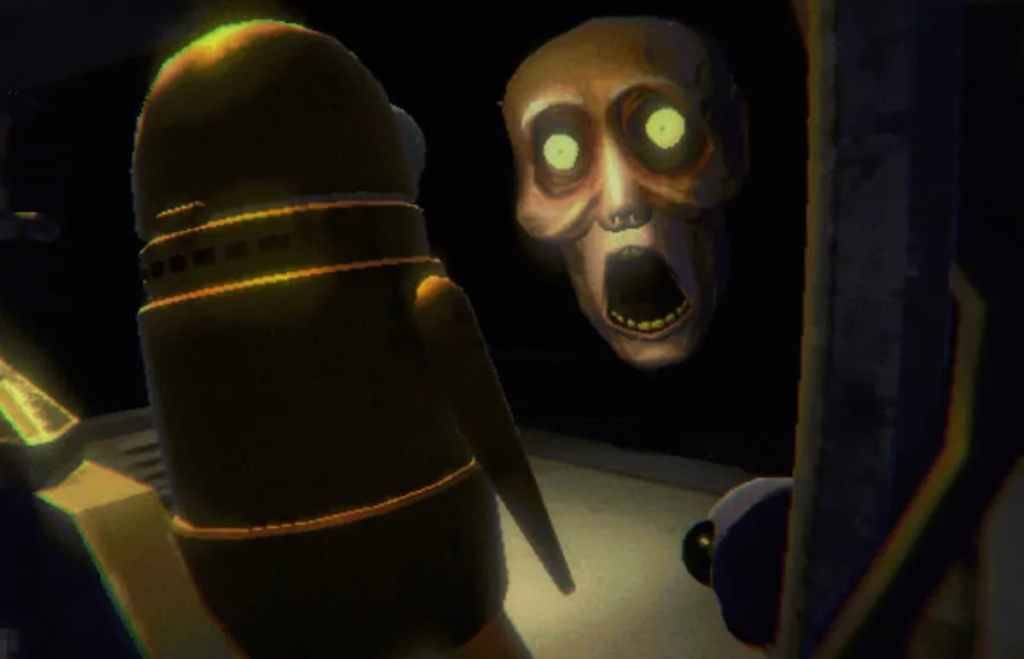
Players launching *R.E.P.O.* on PC are facing a common issue where the game freezes on the loading screen, preventing them from diving into the game. While the developer, semiwork, has yet to address this problem directly, there are several effective workarounds that players can try.
Close and Reopen the Game
The simplest and often most effective solution is to close and reopen *R.E.P.O.*. This action allows the game to reset and potentially resolve any temporary glitches. It's a quick fix that works more often than you might think, so it should be your first step.
Reboot the PC
If restarting the game doesn't work, consider rebooting your PC. A fresh start can help clear out any underlying issues that might be causing the game to hang. Plus, it gives you a brief moment to take a break from the intensity of *R.E.P.O.* before jumping back in.
Related: What Energy Crystals Do in R.E.P.O. and How to Get More
Run R.E.P.O. as Administrator
Running *R.E.P.O.* with administrator privileges can sometimes resolve loading issues by granting the game full access to your system's resources. Here's how to do it:
- Right-click on the *R.E.P.O.* shortcut.
- Select Properties and go to the Compatibility tab.
- Check the box that says "Run this program as an administrator."
Verify Game Files
Another effective method is to verify the integrity of the game files through Steam. This process ensures that all necessary files are present and correctly installed. Here's how to verify game files on Steam:
- Restart your PC and open Steam.
- Right-click on *R.E.P.O.* in your Steam Library or click the gear icon on its Library page.
- Select Properties from the drop-down menu.
- Go to the Installed Files tab and click "Verify integrity of game files."
It's worth noting that not all files may verify successfully, but Steam indicates this is normal. You can safely ignore any messages about files not verifying as you focus on resolving the loading screen issue.
By following these steps, you should be able to fix the *R.E.P.O.* stuck on loading screen bug and continue your thrilling journey through the game. For more tips, check out how to escape the various monsters lurking in *R.E.P.O.*
*R.E.P.O. is available now on PC.*





![Amy’s Ecstasy [v0.45 Final]](https://imgs.daqiang.cc/uploads/07/1719551527667e462789d0f.jpg)